


Key Takeaways
- Mobile installation is available for iPhone, iPad, Android smartphones, and tablets.
- iOS users can install the app through the App Store or the official iOS download route.
- Android users can choose Google Play or direct APK installation.
- Direct APK setup may require permission to install apps from unknown sources.
- Mobile poker supports portrait controls, Smart Focus, and up to four tables.
- The Windows client provides an alternative for players who prefer desktop access.
Open the official download page and choose the installation method that matches your device.
Choose a Mobile Installation Method
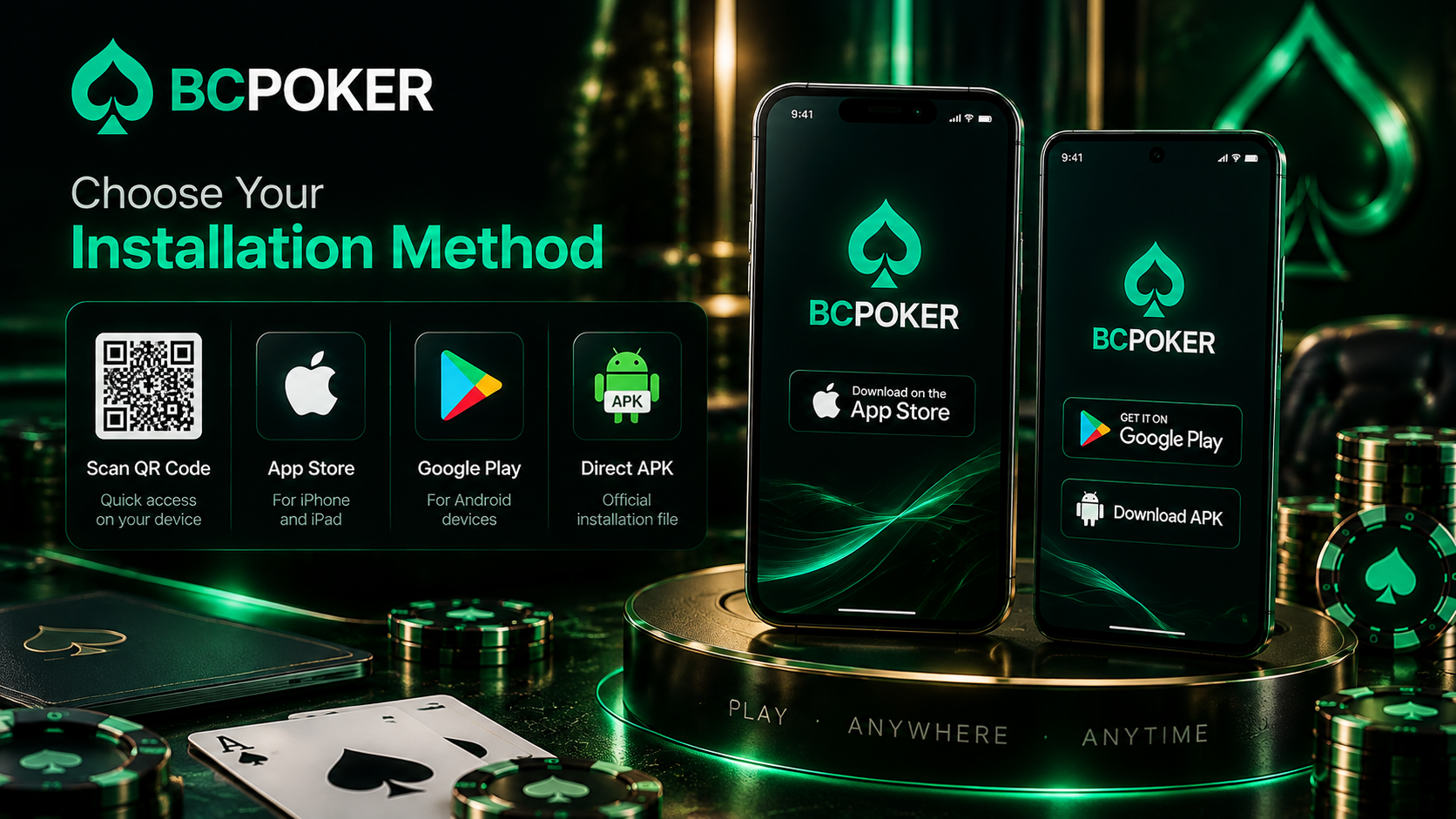
The installation route depends on the operating system. Apple users can select the iOS option for iPhone and iPad, while Android users can choose Google Play or direct APK installation. A QR code on the official download page provides a quick way to reach the relevant destination from a smartphone.
Each option has a different role in the installation process. The App Store and Google Play provide store-based installation, while the direct APK route uses an installation file. The QR code serves as a shortcut to the relevant official download page.
QR Code, App Store, Google Play or Direct APK
The QR code can be scanned with a smartphone camera to open the required BCPoker download page without manually entering its address. App Store and Google Play installations then follow the standard procedures of their respective operating systems. Android users who select the BC Poker apk route follow a separate process because the application is installed directly from an APK file.
The installation method should match the device being used. iPhone and iPad users should follow the iOS route, while Android smartphone and tablet users can select either Google Play or the official direct APK option.
BC Poker on iPhone and iPad
BCPoker provides a dedicated mobile option for Apple’s devices. The iOS version is separate from Android installation and does not use an APK file. Users can start from the official download page and select the option intended for their iPhone or iPad.
After installation, the application can be opened directly from the device. Existing players can use their current BCPoker credentials without creating another account. Players can also check available offers and current promotions through the BCPoker bonus section before starting their mobile poker sessions.
App Store Download and Exclusive Link Activation
When the App Store route is available, open the official BCPoker link on the iPhone or iPad and continue through Apple’s installation interface. Once the application is installed, launch it and follow any activation instructions displayed by the platform.
Players with an existing account can download the BC Poker app on a supported Apple device and sign in using their current account details.
Installing the iOS Version Directly
An alternative iOS installation route is available through the official BCPoker mobile download page. It is designed specifically for iPhone and iPad and should be followed from the Apple device. Android APK instructions do not apply to this installation method.
Open the official download link, follow the iOS instructions shown on the page, and confirm the installation when prompted.
Download, Confirm Installation and Open the App
Open the official BCPoker page in Safari on an iPhone or iPad, tap Share, select Add to Home Screen, and confirm Add. The BCPoker shortcut will then appear on the Home Screen.
Once setup is complete, open the application and proceed to account login. Users who need to download BC Poker should use the iOS-specific route rather than looking for an Android APK.
BC Poker on Android Phones and Tablets
Android users can install BCPoker on compatible smartphones and tablets through Google Play. This store-based option keeps the installation within the standard Android application environment. The official download page can also be reached through its QR code.
Google Play and manual APK installation are separate routes. Users choosing Google Play do not need to manually open an APK file.
Google Play and Exclusive Link Setup
Open Google Play through the official BCPoker link or scan the QR code shown on the download page. Find the BCPoker application, select the installation option, and wait for Android to complete the setup.
The Android process can also include an Exclusive Link step when required for the selected application version. After completing it, launch the app and sign in with the existing account. The BCPoker apk route should be kept separate because it involves manual installation.
Direct Android APK Installation
Direct APK installation is an alternative to Google Play for compatible Android phones and tablets. APK is the standard Android package format used to distribute applications as installation files.
Because the application is installed outside Google Play, Android may require permission for the browser or file manager handling the download. Menu names can vary between Android versions and manufacturers.
Unknown Sources, QR Download and Installation Permission
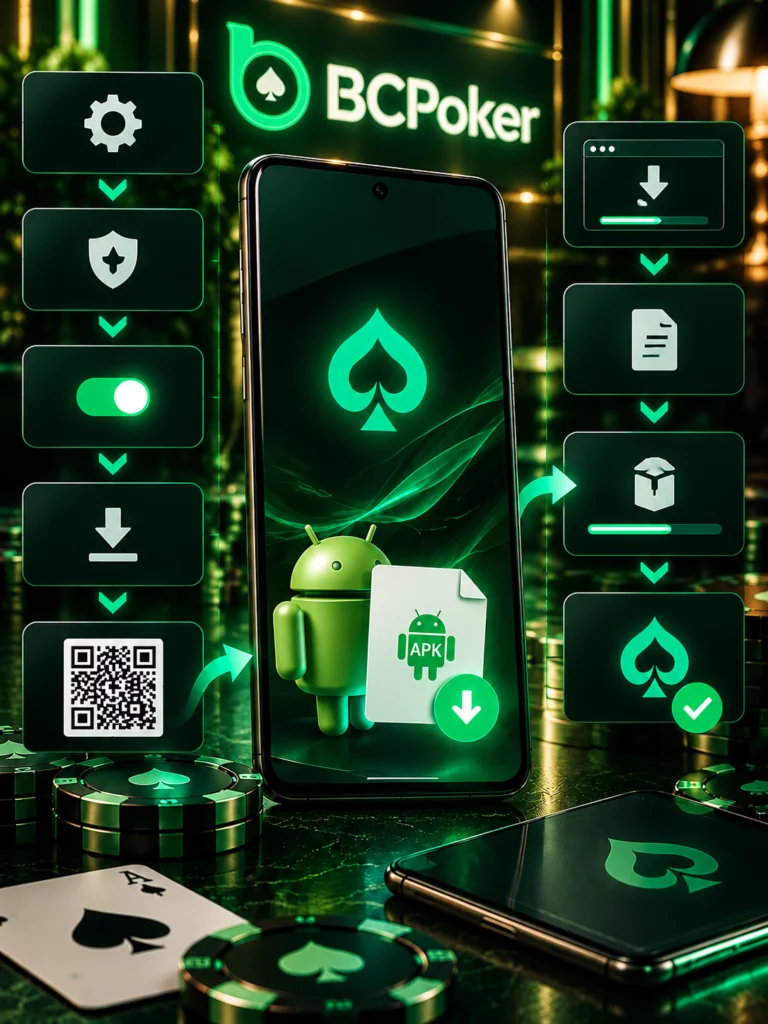
Follow these steps for the direct Android route:
- Open Settings on the Android device.
- Go to Security or application installation settings.
- Locate Unknown Sources or permission to install unknown apps.
- Allow installation for the relevant browser or file manager.
- Confirm the security change if prompted.
- Return to the official BCPoker download page.
- Tap Download or scan the official QR code.
- Wait for the APK file to finish downloading.
- Open the file and confirm installation.
- Launch BCPoker and sign in.
On newer Android versions, permission may be assigned to a specific application rather than enabled globally. Use only the official BCPoker APK and avoid third-party application directories or modified files.
Mobile Interface for Multi-Table Poker
The mobile interface is designed around smartphone and tablet screens, with a layout intended for touch navigation and compact table management. It provides a practical alternative to the larger Windows workspace while keeping the core information required during a poker session accessible on a smaller display.
One-Hand Controls, Smart Focus and Four Tables
The mobile interface places key poker actions within a convenient touch area. It also supports multi-table sessions, with up to four tables available from a phone, while Smart Focus brings the table requiring attention to the foreground when action is needed.
| Feature | Function | Mobile benefit |
| Portrait layout | Optimizes the table for a vertical screen | Efficient use of smartphone space |
| One-hand controls | Places key actions within reach | Easier touch operation |
| Smart Focus | Brings the active table forward | Highlights pending actions |
| Four-table support | Allows up to four tables | Supports multi-table sessions |
| Responsive interface | Adjusts information to the screen | Keeps tables readable |
These functions are focused on reducing unnecessary navigation on a small touchscreen and making table management more practical during mobile sessions.
Windows Client as an Alternative to Mobile Play
The Windows client provides another way to access BCPoker when a larger display is preferred. It offers more screen space for tables and lobby navigation and can be installed separately from the mobile versions.
During the first launch of BCPokerSetup.exe, Windows may display Windows protected your PC. Select More info, then Run anyway, and approve the User Account Control prompt with Yes. After completing the installation, returning users can use the BCPoker account login page to access their profile and continue playing from the desktop environment.
If Windows Security or antivirus software removes the installer, open Windows Security → Protection history. If the file is the official BCPoker installer, restore or allow it through the available security options and run the installation again.